Andy Kemp Consulting is now Cyber Essentials certified. The certificate is the headline, but the work behind it is the bit worth writing about: every device that touches my tenant now has to prove it is managed before it gets in.
Don’t just take my word for it: click the badge to see the live certificate, or look it up on the Cyber Essentials certificate search.
I’m a one-man band. I could have got away with a lighter touch, and plenty of small firms do. But I spend my working life telling organisations how to run identity, devices and access properly. My own tenant should be the model, not the exception.
So this isn’t a “how I passed” post. It’s about the device story that made passing straightforward, the clean-up behind it, and the part most small businesses skip: keeping it that way.
Windows: Autopilot has been the norm for years
On Windows, nothing has changed in principle. I’ve used Windows Autopilot for my devices for a long time. A device comes out of the box, signs in, and Intune builds it: policies, security baseline, apps, naming. No golden images, no hand-built laptops.
What I did as part of this work was tidy it up into a proper standard:
- Separate Autopilot profiles for physical devices (x64 and Arm) and for virtual machines, with their own naming conventions.
- Only the essentials are Required – Company Portal and the Global Secure Access client. Everything else is Available in Company Portal, so builds are quick and users install what they need.
- Old builds are blocked. Compliance sets a minimum Windows build, and Conditional Access needs a compliant device. If a machine falls behind on patching, it loses access until it catches up.
That last point does most of the work for Cyber Essentials’ 14-day patching rule. It’s no longer a promise in a questionnaire; the tenant enforces it.
Apple: I’ve finally made the jump to ADE
Apple was the gap. My Macs and iPads were managed, but not the way I’d tell a client to do it. Now every Apple device I use for work goes through Automated Device Enrolment (ADE): Apple Business assigns it to Intune, and it enrols as a company device the first time it powers on.
What that gets me:
- Zero-touch builds. Unbox, connect to Wi-Fi, sign in. Intune does the rest, the same as Autopilot does on Windows.
- Supervised, company-owned devices. Management can’t be removed by the user, and the device is clearly the company’s, not a personal device with a profile bolted on.
- One standard across platforms. Edge and Microsoft 365 are Required on the Mac, the rest is optional in Company Portal. The iPhone and iPad standard adds Defender for Endpoint and Global Secure Access.
It also forced a policy decision: Macs must be enrolled company devices. No personal Macs. There’s no app protection (MAM) policy for macOS, so there’s no middle ground. A Mac is either managed or it doesn’t get in.
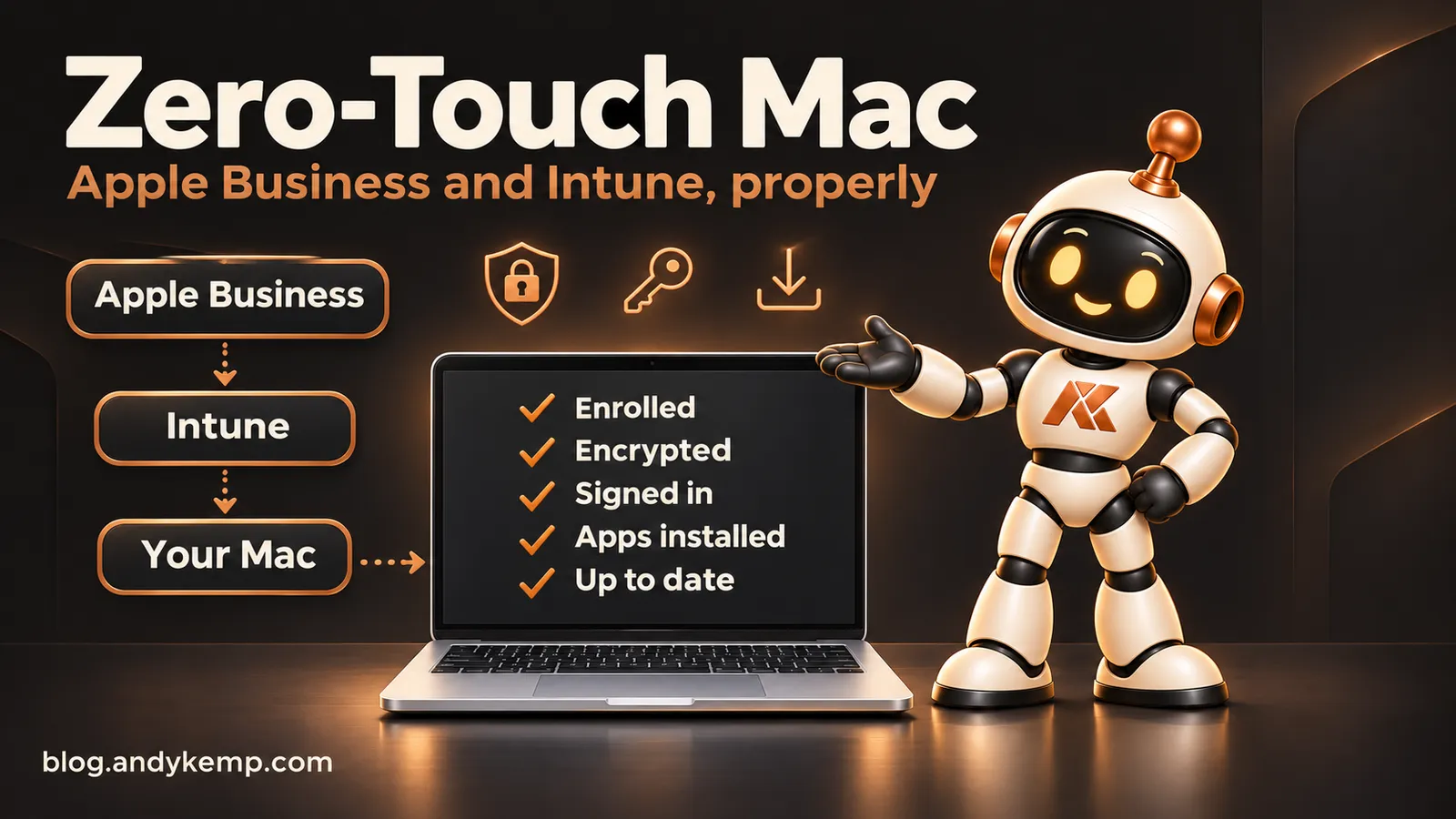
I’m writing up the full Mac build as a separate series, Zero-Touch Mac, including matching the Mac passcode policy to the Entra password policy.
The real win: no managed device, no access

The biggest step forward isn’t Autopilot or ADE on their own. It’s that my tenant now only lets in two kinds of device: ones enrolled in Intune (MDM) and compliant, or personal phones and tablets that are registered and covered by app protection (MAM).
| Device | How it’s managed | What it gets |
|---|---|---|
| Company Windows | Autopilot + Intune, compliant | Full access |
| Company Mac, iPhone, iPad | ADE + Intune, compliant | Full access |
| Personal phone or tablet | Registered, MAM app protection | Microsoft 365 apps only, protected (PIN, no jailbreak, minimum OS) |
| Personal Mac | Not allowed | Blocked |
| Old Windows builds, unknown platforms | Fails compliance | Blocked |

Under it all sit phishing-resistant sign-ins (passkeys for everyone, and only passkeys for admin accounts), and admin work done from a separate account with just-in-time elevation, not my everyday one.
One thing worth knowing if you’re doing this for Cyber Essentials: MAM doesn’t take personal devices out of scope. If a personal phone reaches company data, it’s in scope and must run a supported, patched OS. What app protection gives you is the way to enforce and prove that.
This is what moves a tenant from “MFA is on” to actually knowing what’s connecting to it. Stolen credentials on their own no longer get anyone in.
The clean-up nobody talks about
Locking things down was only half the job. The other half was finding out what was already in there. My tenant has been my lab, my demo kit and my business for years, and it showed.
One day of tidy-up, working read-only first and then changing in small batches:
| Before | After | |
|---|---|---|
| Groups | 163 | 50 and still falling |
| Windows apps in Intune | 58, with 31 assigned to nobody | 45, with 4 left unassigned on purpose |
| Global Administrator holders | 5, including two admin accounts I no longer used | Stale ones deleted; target is 3 |
| Test and old accounts | Dozens of test users, some still holding licences | Deleted, with a handful of test accounts kept on purpose |
| Old emergency access accounts | Three, from different eras | Two new ones, clearly named and protected with passkeys |
None of that was dangerous on its own. Together, it’s exactly what an attacker hopes to find: an old admin account nobody watches, a group that still grants access, an app nobody remembers deploying.
The method matters more than the numbers. Review everything read-only. Decide per object. Export before you delete. Change in small batches and read back the result. Deleted objects in Entra can be restored for 30 days, which is your safety net, not your plan.
Do you actually know what’s in your tenant?

Getting here is sometimes the easy bit. Keeping it here is the real work. So ask yourself honestly:
- Do you know what app registrations and enterprise apps you have? Who created them, what permissions they hold, and whether anyone still uses them?
- Do you know what they do? An app with Mail.ReadWrite or Directory.ReadWrite.All granted to it is as powerful as an admin account, and far less watched.
- Are you actively monitoring them? New consent grants, new credentials added to an app, secrets about to expire, sign-ins from apps that should be dormant.
- Would you notice a new Global Administrator, a new group or a changed Conditional Access policy? Or would you find out when something broke?
This is where good change control and tenant management come in. My rule now is that every object follows a naming standard and has a description, so anything that doesn’t fit stands out. Changes go in as scripts, kept in a Git repo, so I can see what changed, when and why.
Automate it, so you stay above it
You can’t stay on top of this by clicking through portals once a quarter. Most of it can be automated:
- Scheduled reviews of groups, apps, admin roles and licences, flagging anything new, empty or unused.
- Alerts on high-risk changes: role assignments, app consent, new app credentials, Conditional Access edits.
- Access reviews and PIM, so admin rights expire unless someone actively needs them.
- Compliance doing the policing, so a device that drifts out of standard loses access without me lifting a finger.
The point isn’t more dashboards. It’s that the tenant tells you when something has changed, instead of you finding out the hard way.
Next up: Android
Windows and Apple are done. Android is next. I’m adding a Samsung test device, so I can work through Knox and Android Enterprise enrolment properly, and possibly a Google Pixel alongside it.
The goal is the same as everywhere else: a company Android phone enrols with zero touch and is managed end to end, and a personal one gets app protection and nothing more. Once that’s done, I’ll have the same model running on every major platform. I’ll write that up when it’s working, not before.
If you’re a small business, start here
Cyber Essentials asks whether your devices are patched, protected and controlled. The easiest way to answer yes, and keep it true for the 12 months the declaration covers, is to make your tenant refuse anything that isn’t.
- Enrol company devices with zero touch – Autopilot for Windows, ADE through Apple Business for Apple.
- Set compliance that means something – a minimum OS build, encryption, and Defender.
- Require a compliant device or app protection in Conditional Access, and block everything else.
- Allow personal phones only through MAM, and remember they’re still in scope.
- Clean up what’s already there – groups, apps, app registrations, admin roles and old accounts.
- Keep watching it – automate the reviews and alerts so drift gets caught early.
None of this needs a big IT team. If one person can run it for a one-man consultancy, it’s achievable for a small business. If you want help getting there, get in touch.

Comments
No comments yet — be the first to leave one below.