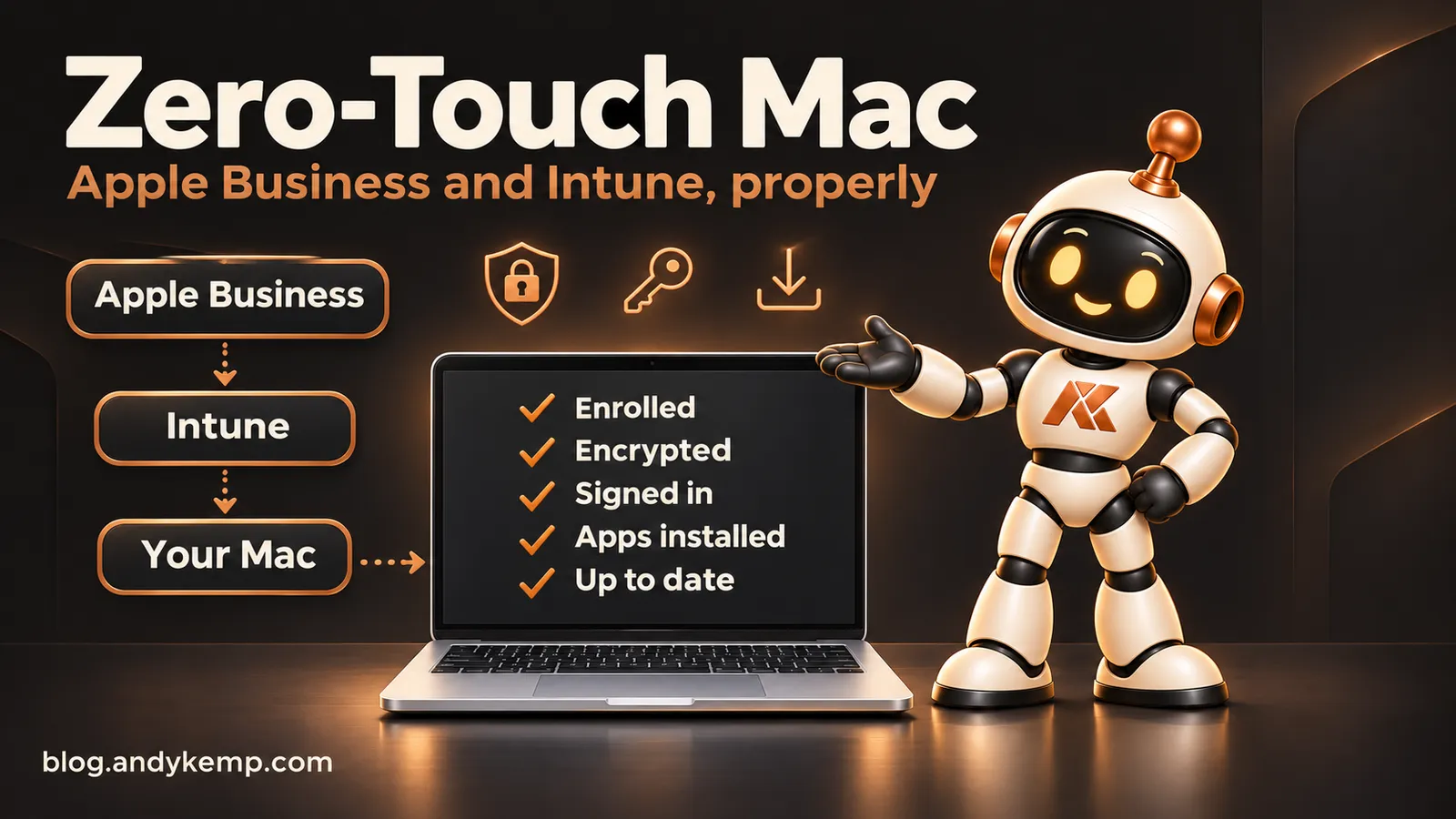
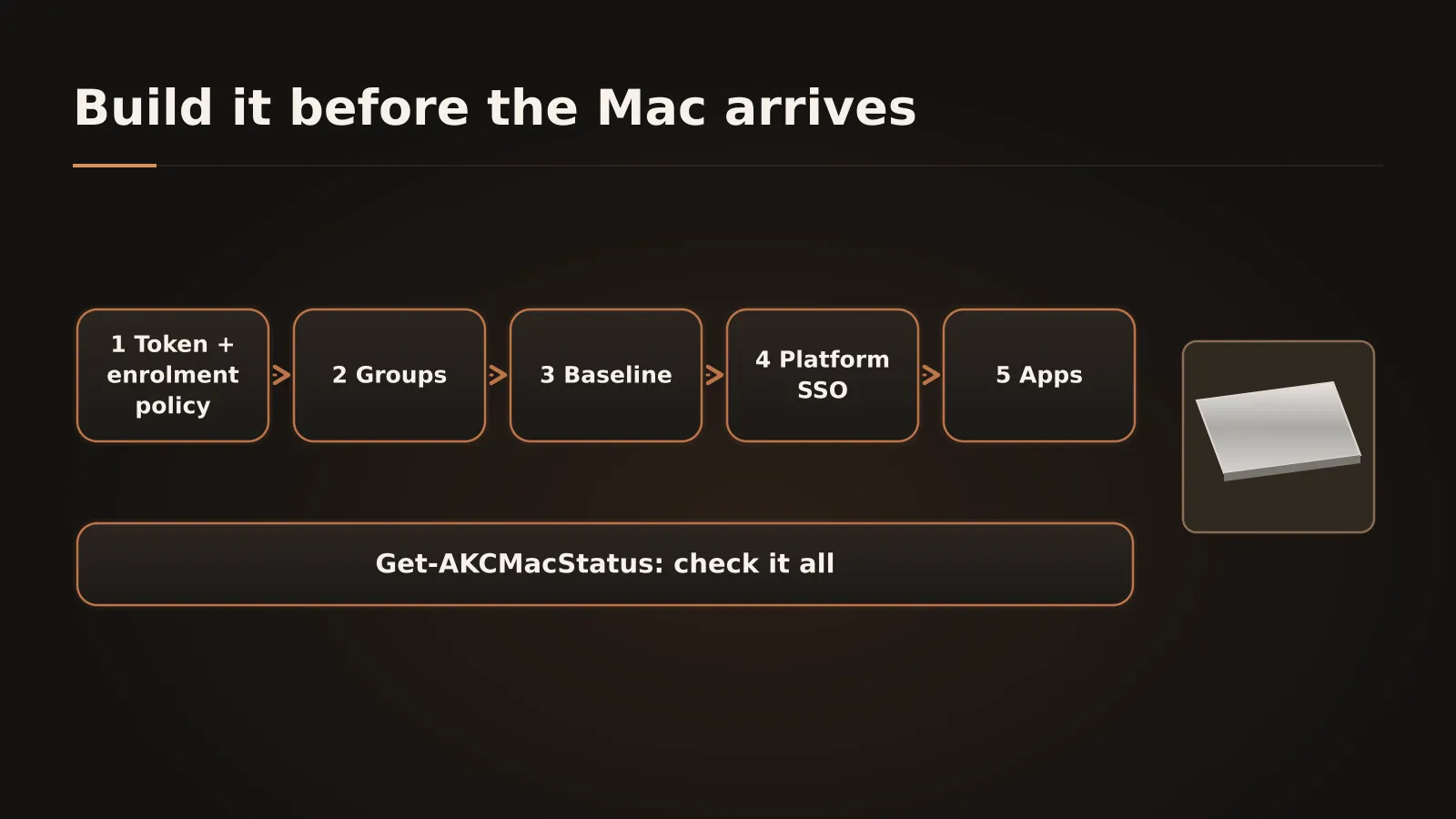
Zero-touch only works if everything is waiting for the Mac before it’s switched on. By the time mine arrived, Intune already had the enrolment policy, the groups, the security baseline and the first apps in place.
This post is that groundwork, in the order I built it.
This is Part 1 of Zero-Touch Mac, a series about building a managed Mac from Apple Business and Intune with every policy, profile and app scripted through Microsoft Graph.
1. The Apple Business token
Intune and Apple Business talk through an enrolment program token (the ADE token). You download a public key from Intune, upload it in Apple Business, and bring the token back.
Two things worth doing straight away:
- Write down the expiry date. Tokens last a year, and an expired token quietly stops new Macs enrolling.
- In Apple Business, set Intune as the default device management server for Mac. Part 2 is what happens when you don’t.
2. The enrolment policy
Intune has two places for Apple enrolment settings. Use Enrollment policies on the token, not the older Profiles blade, which Microsoft is no longer updating.
My settings:
| Setting | Value | Why |
|---|---|---|
| User affinity | Enrol with user affinity | The Mac belongs to a person, not a kiosk |
| Authentication | Setup Assistant with modern authentication | Entra sign-in during setup |
| Await final configuration | Yes | Holds the user at setup until the policies arrive |
| Locked enrolment | Yes | The user can’t remove management |
| Local accounts | Hidden admin with LAPS, standard primary account | See below |
Then set it as the default policy on the token. A Mac that syncs with no policy assigned fails enrolment.
The local admin account
The enrolment policy can create a hidden local admin account and have Intune rotate its password, which is LAPS for Mac. My day-to-day account is a standard user, and I elevate with the LAPS password when I need to.
Two catches:
- Graph can’t update the new enrolment policies yet. My script checks the settings and lists what to change, but you click the last step in the portal.
- You need a custom role to see the password. No built-in Intune role includes “View macOS admin password”. The script creates one and a group for it.
3. The groups
Two groups do all the targeting:
- AKC-Devices-macOS-Enrolment, a static group the enrolment policy adds each new Mac to. Everything needed during setup is assigned here, so it applies while the user waits at “Await final configuration”.
- AKC-Devices-macOS-All, a dynamic group of every company-owned Mac, for things that can arrive later.
The static group has one odd requirement. Its owner must include the Intune Provisioning Client service principal, App ID f1346770-5b25-470b-88bd-d5744ab7952c. In some tenants it shows up as Intune Autopilot ConfidentialClient, so check the App ID rather than the name. Without it, Macs never get added to the group.
4. The baseline
These are the policies every Mac gets, all scripted:
- FileVault on at first login, with the personal recovery key escrowed to Intune and no option to skip.
- Software updates through declarative device management, set to “enforce latest”, so a new Mac is brought up to date soon after setup.
- Firewall on.
- Passcode and screen lock rules.
- Microsoft Defender system extensions, permissions and onboarding (Part 4).
- OneDrive Known Folder Move and Microsoft AutoUpdate settings.
- Compliance, deliberately with no password rules.
That last one looks odd, so it’s worth explaining. If a compliance policy includes password rules, Intune marks the LAPS admin account “change at next authentication”, which breaks it. Password rules live only in the passcode configuration policy. Part 3 is what happened when an old setting slipped through anyway.
5. Platform SSO and Company Portal
Platform SSO needs Microsoft’s Enterprise SSO plug-in, which ships inside Company Portal. So Company Portal has to be on the Mac before Platform SSO can register.
I upload Company Portal as a Required PKG app assigned to the enrolment group, so it installs during setup. The Platform SSO policy goes to the same group. Part 3 covers which Platform SSO method to choose, because I changed my mind.
6. How it’s built
Each area has a script:
| Script | What it does |
|---|---|
Set-AKCMacEnrolment.ps1 |
Checks the token, policy and group; FileVault, updates, Platform SSO |
Set-AKCMacLocalAccounts.ps1 |
LAPS admin and primary account settings, and the viewer role |
Deploy-AKCMacCompanyPortal.ps1 |
Company Portal as a Required PKG |
Set-AKCMacBaseline.ps1 |
Compliance, Defender, firewall, passcode, OneDrive, AutoUpdate |
New-AKCMacDeviceGroup.ps1 |
The dynamic all-Macs group |
Get-AKCMacStatus.ps1 |
Read-only check of all of the above |
Every one dry-runs first. Get-AKCMacStatus.ps1 is the one I run most: it reads everything back and shows what’s missing, without changing anything.
What I’d tell myself
Build all of this before you power on the Mac, and check it with the status script. A Mac that enrols into half a configuration will still enrol. You just spend the next hour finding out which half is missing.
Next in the series: Apple Business, and the mistake that meant I had to erase the Mac.


Comments
No comments yet — be the first to leave one below.