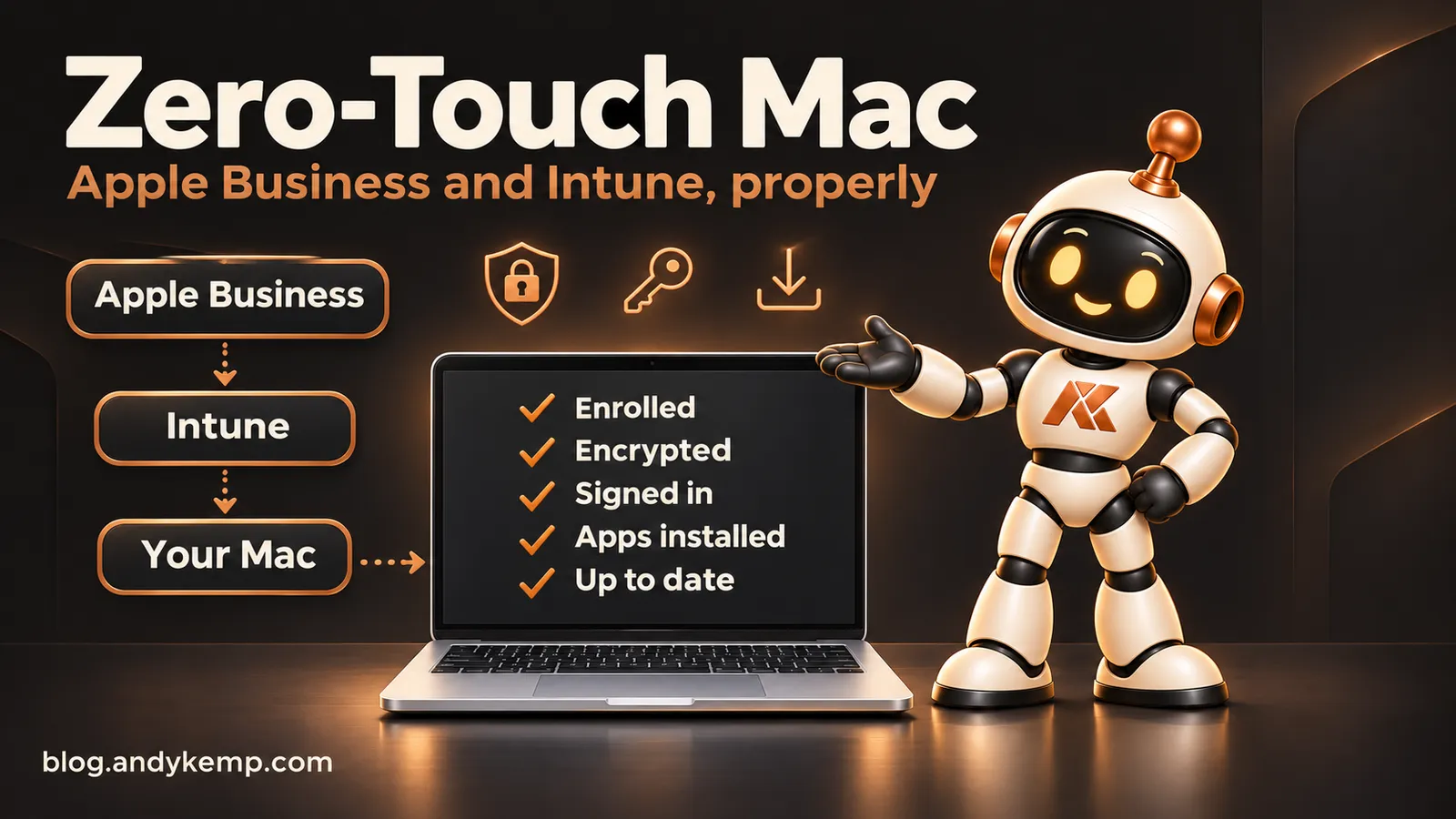
I’ve just set up a new company MacBook Pro without doing much more than signing in. No imaging, no admin account left lying around, no list of apps to install by hand.
This series is how I did it with Apple Business and Microsoft Intune, and everything that went wrong along the way.
This is the introduction to Zero-Touch Mac, a series about building a managed Mac from Apple Business and Intune with every policy, profile and app scripted through Microsoft Graph.
Why bother for one Mac?
I run a one-person consultancy, so I could have unboxed it and installed things. I didn’t, for three reasons.
- It’s a company device. It should be managed like one: encrypted, patched, monitored and recoverable if it’s lost.
- Cyber Essentials. I’m certifying Andy Kemp Consulting, and since April 2026 missing a high-risk update for more than 14 days is an automatic fail. I want the Mac to keep itself inside that window without me remembering.
- A friend asked me to do the same for him. If I’m going to do it twice, I want it scripted and repeatable, not a folder of portal screenshots.
What “zero-touch” means here
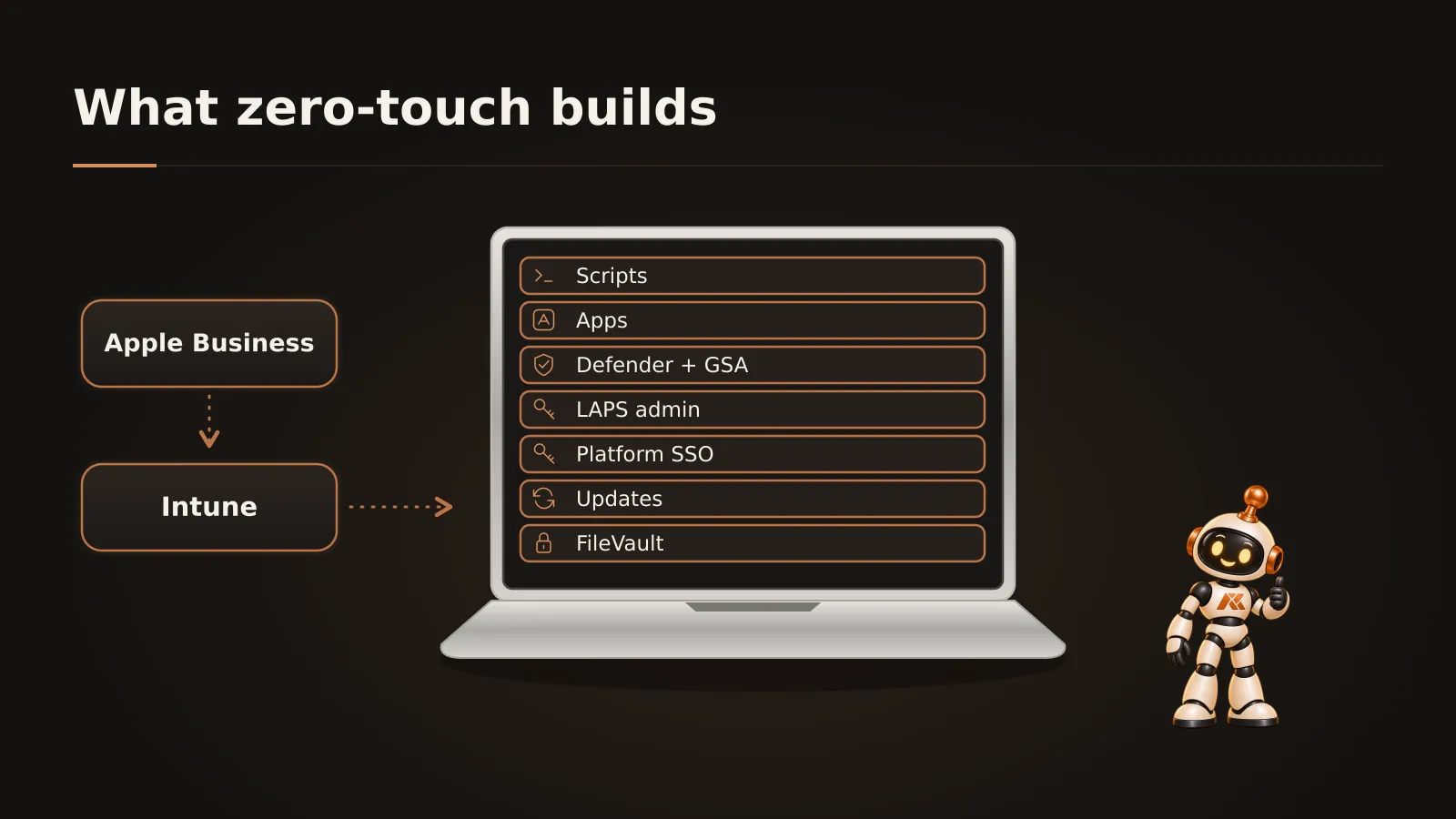
The Mac is registered to my company in Apple Business. On first boot it finds that, enrols itself in Intune and builds itself:
- FileVault on, with the recovery key held in Intune.
- macOS updates enforced through declarative device management.
- Platform SSO, so the Mac password is my Entra password and Microsoft apps sign me in on their own.
- A hidden local admin account, its password rotated by Intune (LAPS).
- Microsoft Defender for Endpoint and Global Secure Access installed and running, with no prompts.
- Company Portal, Defender, Global Secure Access, Edge and Microsoft 365 installed for me. Everything else, from VS Code to Parallels, is optional in Company Portal.
- Developer tools and PowerShell modules installed and kept up to date by scripts.
The only things I do by hand are the things that are genuinely mine: signing in to my own accounts.
Everything is scripted
Every policy, profile and app in this series is created by PowerShell through Microsoft Graph, not clicked together in the portal.
The scripts live in my AKC-Scripts repository. They all work the same way:
- Run without
-Applyand you get a dry run that shows exactly what would change. - Run with
-Applyand it makes the change. - Run it again and it only touches what’s different.
That last point mattered more than I expected. Half of this series is me running a script for the second or third time after finding a better way.
An honest series
It didn’t all go to plan, and I’ve kept the mistakes in:
- I registered the Mac in Apple Business too late and had to erase it.
- My Entra password wouldn’t sync to the Mac because of a setting I’d forgotten I’d made.
- Apps installed inside themselves and showed as “damaged”.
- Parallels refused to start until I found the real cause, which had nothing to do with Parallels.
Each post covers what broke and how I fixed it, because that’s the part the official documentation leaves out.
The series
| Part | Post |
|---|---|
| 1 | The prep: everything I built before the Mac arrived |
| 2 | Apple Business, and how I got it wrong |
| 3 | Platform SSO and the password that wouldn’t sync |
| 4 | Security agents with no prompts: Defender and Global Secure Access |
| 5 | Deploying Mac apps through Graph |
| 6 | “Downloaded from the internet”: quarantine, App Translocation and Parallels |
| 7 | App Store apps, Adobe and other awkward installers |
| 8 | When it isn’t an app: developer tools and PowerShell modules |
| 9 | Keeping it patched for Cyber Essentials |
| 10 | Turning it into a toolkit |
Next in the series: everything I built in Intune before the Mac arrived.



Comments
No comments yet — be the first to leave one below.