We’ve designed the account.
We’ve decided who owns the policy.
We’ve looked at Windows 11, Windows Server, Active Directory, encryption, delegation and DSRM.
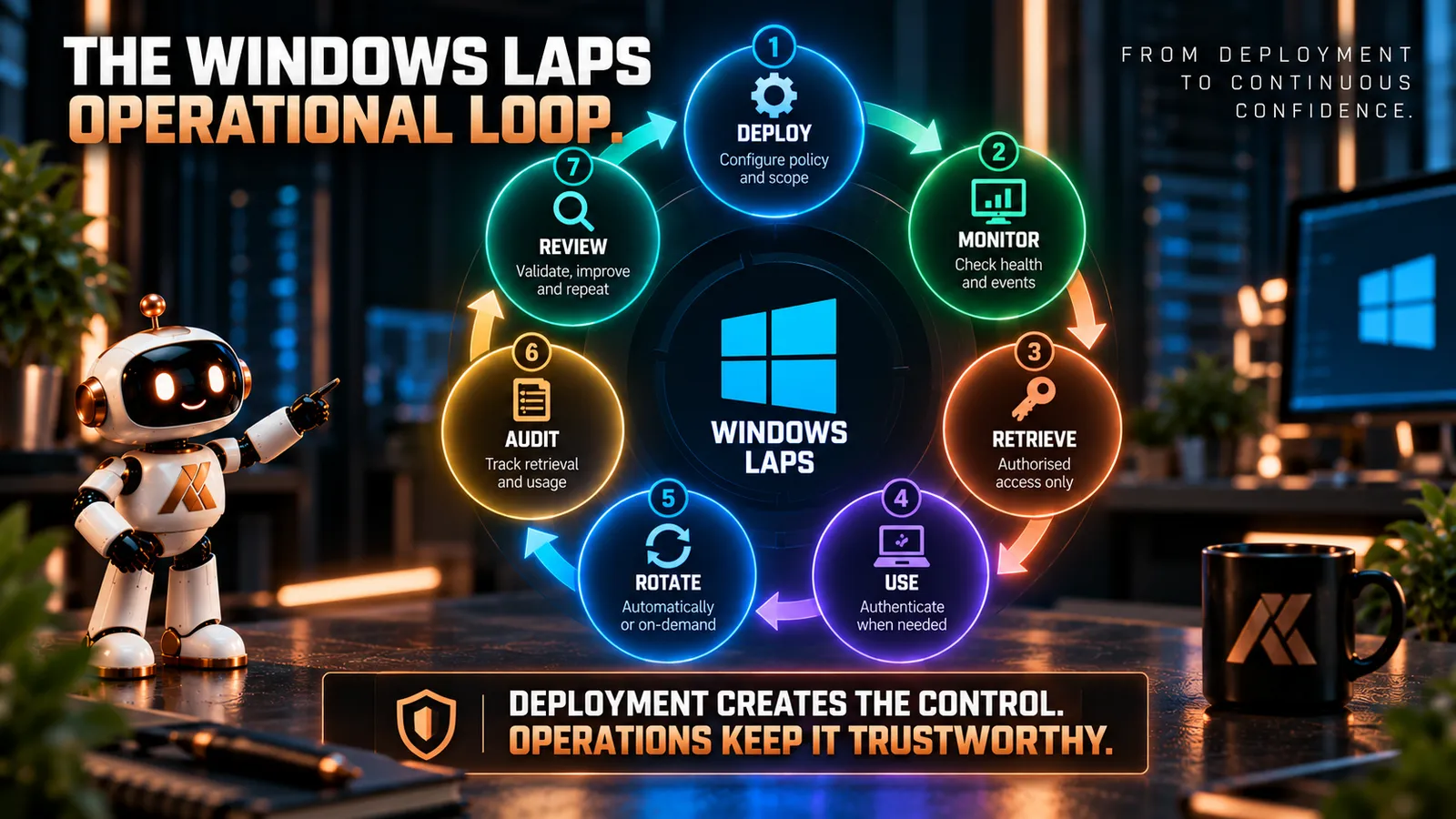
Windows LAPS is deployed.
Job done?
Not quite.
In fact, I’d argue this is where the more important part begins.
Because deploying Windows LAPS gives us a technical control.
Operating Windows LAPS determines whether that control continues to do what we designed it to do.
Passwords need to rotate.
Backups need to succeed.
Retrieval needs to remain appropriately delegated.
Use of the credential needs to be understood.
Failures need to be detected.
And perhaps most importantly, we need to remember something that has been a recurring theme throughout this series:
Windows LAPS manages one account.
It doesn’t automatically govern every other identity with local administrative rights.
So our operational question isn’t simply:
Is LAPS deployed?
It’s:
Is local administrative access still operating in the state we intended?
Because:
A rotated password isn’t evidence of a controlled privilege model.
Start with the operating model
Before we look at logs, events or reports, let’s establish what normal should look like.
For a well-designed Windows LAPS deployment, I’d expect something like this:
The managed account exists and is healthy.
The password is successfully backed up to the intended directory.
The password rotates according to policy.
Only authorised identities can retrieve it.
Retrieval is exceptional rather than routine.
Use of the credential results in appropriate rotation.
Failures are monitored.
Other local administrators remain governed separately.
That last point matters.
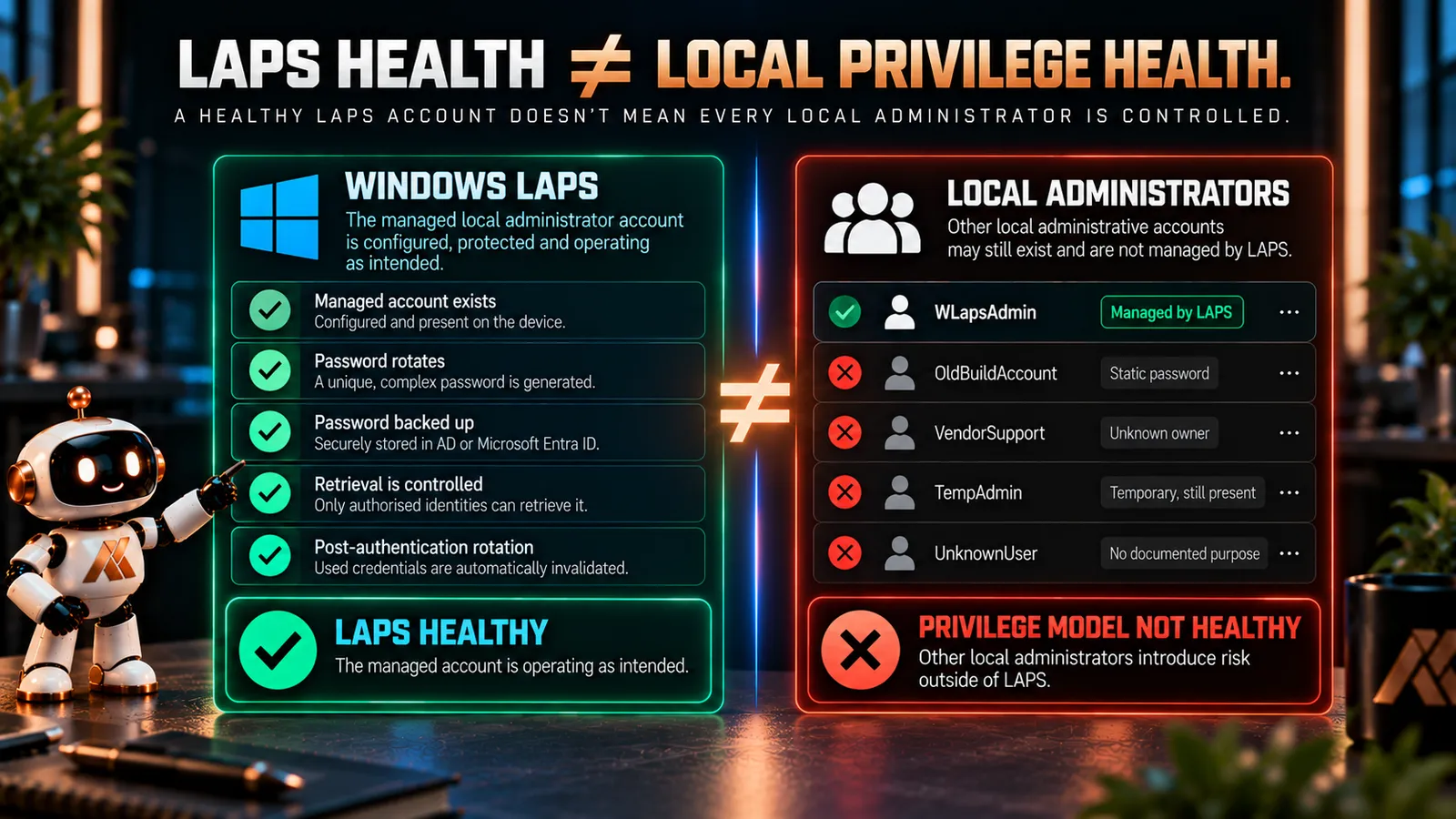
If LAPS is functioning perfectly but an old deployment account remains permanently in the local Administrators group with a static password, we haven’t got a healthy local privilege model.
We’ve got a healthy LAPS account alongside an unhealthy privilege model.
Those aren’t the same thing.
Password retrieval is a privileged action
A Windows LAPS password is deliberately difficult to obtain unless you’ve been granted the necessary rights.
That’s the point.
Once retrieved, that credential provides local administrative access to the device.
So I don’t think password retrieval should be treated as an ordinary helpdesk lookup.
It should be treated as a privileged operation.
Who can retrieve it?
Why are they retrieving it?
Which devices can they retrieve it for?
What happens after they use it?
Can we establish that retrieval occurred?
And does their ability to retrieve it still match their role?
Those are governance questions, not LAPS configuration questions.
Retrieval from Active Directory
When Windows LAPS backs passwords up to Windows Server Active Directory, authorised administrators can retrieve the credential using supported tooling such as:
Get-LapsADPassword
Active Directory Users and Computers can also expose Windows LAPS information to appropriately authorised users.
But the fact that someone has a tool capable of retrieving the password doesn’t grant them access.
The permissions we’ve designed in Active Directory determine what they’re actually authorised to retrieve.
This is why the delegation model from Part 3 matters operationally.
If Server Support should only retrieve passwords for a particular server population, the directory permissions should enforce that boundary.
If workstation support doesn’t need server LAPS credentials, don’t grant it.
If a role changes, review the delegation.
The question isn’t:
Who has the PowerShell module installed?
It’s:
Who can actually retrieve the credential?
Retrieval from Microsoft Entra ID
For passwords backed up to Microsoft Entra ID, retrieval is controlled through Microsoft Entra permissions.
Microsoft provides built-in roles that can recover Windows LAPS passwords, including Cloud Device Administrator and Intune Administrator, and organisations can use custom roles to provide more granular access.
Again, I’d avoid thinking purely in terms of:
Which built-in role gives somebody access?
Instead ask:
What is the minimum privilege required for this operational role?
If a support team only needs to recover LAPS passwords, giving them a much broader administrative role simply because it happens to contain that permission isn’t necessarily the best design.
Use role design deliberately.
LAPS retrieval is privileged access.
Treat it like privileged access.
Retrieval should leave evidence
If retrieving the password is privileged, we need to be able to establish that it happened.
For Windows Server Active Directory, Windows LAPS supports auditing of password retrieval.
The Windows LAPS PowerShell module includes:
Set-LapsADAuditing
which can configure auditing on the appropriate Active Directory OUs.
That gives us visibility into access to the LAPS password attributes.
For Microsoft Entra-backed passwords, Microsoft Entra provides auditing around LAPS password recovery and Intune records administrative actions such as manual password rotation.
This is something I’d actively feed into the wider security monitoring model rather than leave as information we only investigate after an incident.
A LAPS password being retrieved isn’t automatically suspicious.
But it is security-relevant.
Context matters.
A service desk engineer retrieving a password for a device they’re actively repairing may be entirely expected.
A privileged credential being retrieved for twenty devices by an identity that doesn’t normally do so?
I’d want to know why.
Audit data becomes useful when somebody is actually looking at it.
Retrieval and use are not the same event
There’s an important distinction here.
Retrieving a LAPS password tells us that somebody accessed the credential.
It doesn’t necessarily prove that they used it to authenticate to the device.
Conversely, Windows LAPS on the managed device can detect successful authentication by the account it manages when post-authentication actions are configured.
That distinction gives us useful operational context.
We can think about:
Credential retrieval
Who obtained the secret?
and:
Credential use
Was the managed account subsequently used to authenticate?
They’re related.
But they’re not the same thing.
Rotate after authentication
This is one of my favourite capabilities in modern Windows LAPS.
Historically, one of the awkward things about recovery credentials was what happened after somebody used them.
Imagine a support engineer retrieves a local administrator password.
They use it.
The incident is resolved.
But the password remains valid until its normal rotation date.
That creates a window where a credential that has been exposed to a human remains reusable.
Windows LAPS gives us a better model.
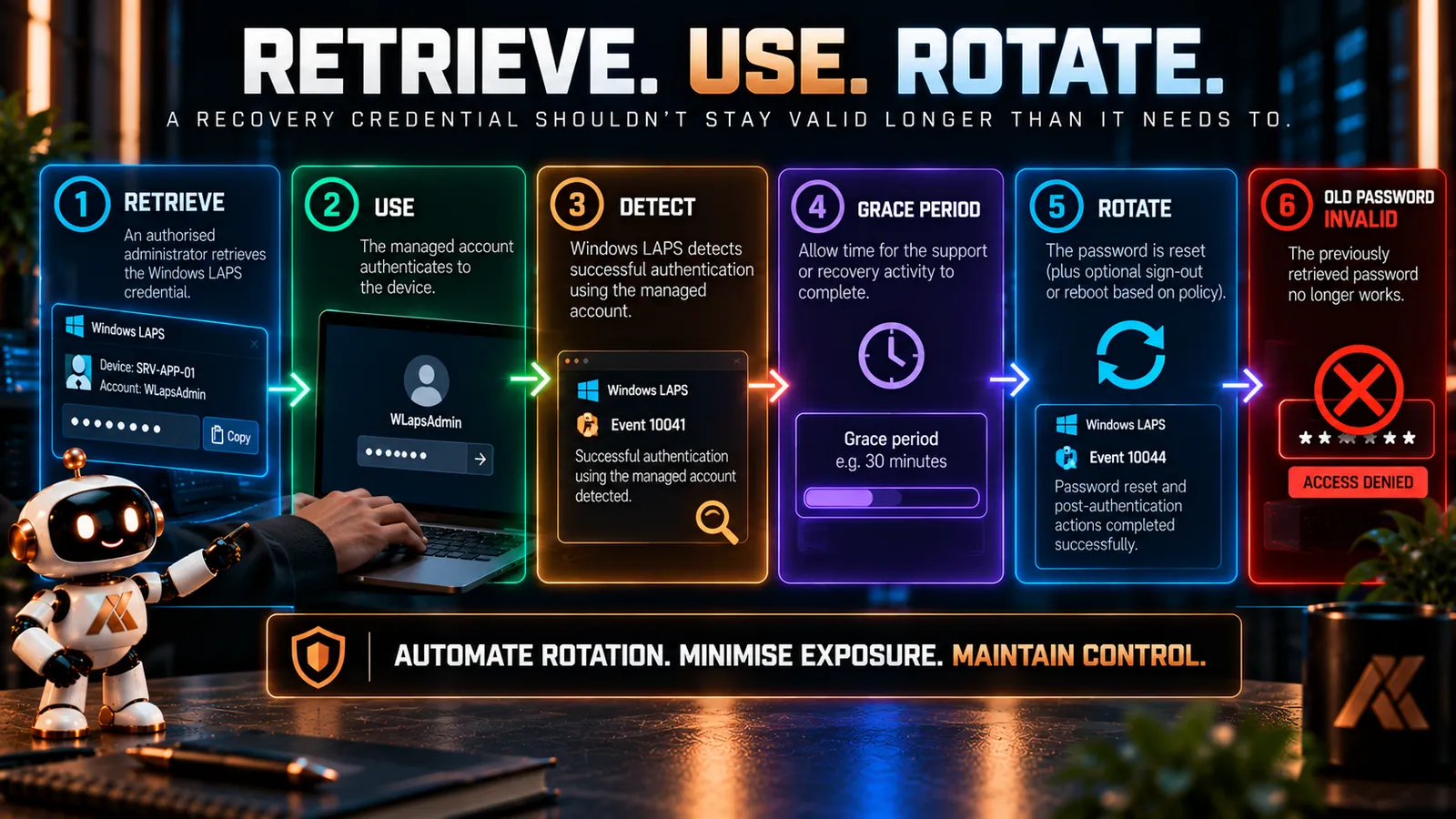
Through post-authentication actions, Windows LAPS can detect successful authentication using the managed account.
After the configured grace period, it can take action.
Depending on policy, this can include:
- resetting the password
- resetting the password and signing out the managed account
- resetting the password and rebooting the device
That changes the credential lifecycle significantly.
Instead of:
Retrieve → Use → Password remains valid
we can move towards:
Retrieve → Use → Grace period → Rotate
The credential becomes much closer to a temporary recovery secret.
Don’t make the grace period arbitrary
The grace period needs some thought.
Too long and we unnecessarily extend the useful lifetime of an exposed credential.
Too short and we risk disrupting the support or recovery activity that required it in the first place.
This is an operational decision.
How long does a normal recovery task take?
Does the administrator need to reconnect?
Could rebooting immediately create a problem?
Are we dealing with a workstation or a server?
The most aggressive setting isn’t automatically the best setting.
The objective is:
Minimise credential exposure without breaking the operational process the credential exists to support.
Sometimes we need to rotate immediately
We don’t always need to wait for the normal password age or a post-authentication action.
Windows LAPS supports immediate password rotation.
Locally, the Windows LAPS PowerShell module provides:
Reset-LapsPassword
which initiates an immediate password rotation.
For Intune-managed Windows devices using Entra-backed LAPS, administrators with the required permissions can also initiate Rotate local admin password as a remote device action.
That can be useful after:
- suspected credential exposure
- troubleshooting
- a support operation
- administrative testing
- an incident
- any situation where we no longer want the current password to remain valid
This should form part of the operational runbook.
If somebody believes a LAPS credential may have been exposed, they shouldn’t need to search Microsoft Learn to discover how to rotate it.
The process should already exist.
But rotation needs to succeed
Clicking Rotate isn’t the security control.
Successfully replacing the password and backing up the new value is.
That distinction matters.
A device may be offline.
It may have directory connectivity problems.
Policy processing may be failing.
The backup operation may fail.
With an Intune-triggered manual rotation, for example, the device needs to successfully process the request and back up the new password.
So don’t design an incident-response procedure that says:
Press rotate. Done.
It should say:
Initiate rotation. Verify successful rotation and backup.
That’s a much stronger operational control.
Windows LAPS gives us excellent local telemetry
Windows LAPS has a dedicated event log:
Applications and Services Logs\Microsoft\Windows\LAPS\Operational
This is one of the first places I’d look when troubleshooting a Windows LAPS device.
The log gives us visibility into things including:
- policy processing
- the effective policy configuration
- password backup
- local account password updates
- blocked external password modification
- post-authentication activity
- password rotation success or failure
For example, Windows LAPS records events when policy processing begins and ends.
It records the effective policy configuration and, importantly given what we discussed in Part 2, identifies the active policy source.
It records successful password updates to Active Directory or Microsoft Entra ID.
And it records successful updates to the local managed account.
That gives us much more than:
The policy was assigned.
It gives us evidence of what the device is actually doing.
Some events are particularly useful
I wouldn’t expect every administrator to memorise Windows LAPS event IDs.
But there are several worth knowing operationally.
For example:
10003
Policy processing started.
10004
Policy processing succeeded.
10005
Policy processing failed.
10018
A new password was successfully written to Windows Server Active Directory.
10020
The local managed account was successfully updated.
10029
A new password was successfully written to Microsoft Entra ID.
Then there are the post-authentication events.
10041
Windows LAPS detected successful authentication using the managed account and scheduled the configured post-authentication action.
10042
The grace period expired and the action is being executed.
10044
The password reset and configured post-authentication actions completed successfully.
And importantly:
10043
The post-authentication password reset failed.
Windows LAPS continues retrying the password reset if that occurs.
Those events give us an operational story.
Not simply:
LAPS is configured.
But:
LAPS processed the policy, backed up the password, detected use and successfully invalidated the exposed credential.
That’s much more useful.
Don’t monitor one device at a time
Event Viewer is excellent for troubleshooting.
It isn’t how I want to establish the health of ten thousand devices.
At scale, Windows LAPS telemetry should feed into whatever monitoring and reporting model the organisation already uses.
Microsoft specifically points to centralised event collection as an option when validating Windows LAPS deployment.
The implementation will depend on the environment.
But the questions I’d want to answer centrally are straightforward.
How many devices should have Windows LAPS?
How many successfully backed up a password?
How many haven’t rotated within the expected period?
Which devices are reporting policy-processing failures?
Which devices have failed post-authentication rotation?
Where is the configured account missing?
Are we seeing unexpected policy sources?
Are passwords being retrieved unusually frequently?
That turns LAPS from a configuration into an operational security control.
Policy assignment isn’t proof of health
This is particularly important in Intune.
We often fall into the trap of thinking:
Policy assigned = control implemented.
But Windows LAPS depends on more than assignment.
The device needs to process the policy.
The intended account needs to be manageable.
The password needs to rotate.
The password needs to be backed up.
The directory needs to contain a usable current credential.
And retrieval needs to work for the people who are supposed to have access.
That’s why I’d include functional validation in the deployment and ongoing operational process.
Take a sample device.
Retrieve the credential.
Verify that it works.
Verify that use is detected.
Verify that the password rotates.
Verify that the old password no longer works.
Verify that the new password can be retrieved by an authorised administrator.
And verify that somebody who shouldn’t retrieve it can’t.
That tests the control.
Not merely the configuration.
And then there’s the account LAPS isn’t managing
This brings us back to Part 1.
Windows LAPS manages its configured account.
It doesn’t automatically solve every other local administrator.
Suppose our beautifully operated Windows LAPS estate has:
WLapsAdmin
Managed by Windows LAPS.
Great.
But the Administrators group also contains:
OldBuildAccount
VendorSupport
TempAdmin
LegacyHelpdesk
and a user nobody recognises.
Is LAPS healthy?
Technically, perhaps.
Is local administrative access healthy?
Absolutely not.
This is why I don’t think Windows LAPS should ever be operated in isolation from local group governance.
We need to know what else has administrative rights.
Desired state needs continuous validation
If we’ve used Intune Local Users and Groups policy, Group Policy or another supported mechanism to define the local Administrators group, that gives us our intended state.
But environments drift.
Devices move.
Policies change.
Exceptions get created.
Applications add accounts.
Troubleshooting leaves things behind.
People make emergency changes and forget to remove them.
So part of operating local privilege should be asking:
Does the current local Administrators group still match our intended state?
Exceptions need ownership
There will be legitimate exceptions.
A product may require a local service account.
A vendor may have a documented support requirement.
A particular recovery process may need something unusual.
That’s reality.
The answer isn’t necessarily:
No exceptions.
It’s:
No unmanaged exceptions.
For every additional privileged local identity, I want to know:
- why it exists
- who owns it
- how its credential is protected
- whether interactive sign-in is required
- whether it still needs local administrator rights
- when that requirement was last reviewed
- how it will eventually be removed
Otherwise temporary exceptions have an unfortunate habit of becoming permanent architecture.
Review who can retrieve passwords too
Drift doesn’t only happen on devices.
It happens in permissions.
An administrator changes teams.
A support function is reorganised.
A temporary role becomes permanent.
A project finishes.
A group accumulates members.
The LAPS retrieval model we designed twelve months ago may no longer represent the organisation we operate today.
So periodically review:
Who can retrieve workstation LAPS passwords?
Who can retrieve server LAPS passwords?
Who can decrypt AD-backed credentials?
Who can retrieve DSRM passwords?
Who can initiate password rotation?
Who actually used those permissions?
This is standard privileged-access governance.
LAPS doesn’t make it less important.
It makes it possible to do properly.
What does good Windows LAPS operation look like?
For me, the end state isn’t:
Windows LAPS: Enabled
It’s something closer to:
Coverage
Every intended device is enrolled in the LAPS model.
Account health
The intended managed account exists and is configured correctly.
Password health
Passwords rotate and successfully back up.
Retrieval
Access is delegated according to operational need.
Auditing
Credential retrieval and administrative actions leave useful evidence.
Post-authentication
Used credentials are invalidated within an appropriate period.
Monitoring
Failures and unexpected behaviour are visible centrally.
Local privilege
The rest of the Administrators group is governed.
Review
Permissions, exceptions and operational processes are periodically reassessed.
That’s a security control I can have confidence in.
The password was never really the whole problem
At the beginning of this series, I said:
LAPS solves a password problem. A good LAPS architecture solves a local privilege problem.
That’s really the point of all four parts.
Windows LAPS gives us an excellent capability for generating, storing, rotating and retrieving local administrator passwords.
But deploying it doesn’t automatically give us a good privileged-access architecture.
We still have to decide:
Which account should exist?
Who should be a local administrator?
Which management plane owns the configuration?
Where should the credential be stored?
Who can retrieve it?
What happens after they use it?
How do we know rotation succeeded?
What happens when it fails?
What other privileged identities exist?
And does the environment still look the way we designed it?
Those are architecture and operational questions.
Windows LAPS gives us the technology to answer part of them.
We have to design and operate the rest.
So don’t finish your Windows LAPS project when the policy turns green.
That’s when the control starts operating.
Deployment isn’t the finish line.
Microsoft Learn references
Documentation checked on 4 October 2026. Microsoft’s documentation below covers Windows LAPS monitoring, event logging, password retrieval, post-authentication actions, manual rotation, Intune RBAC and Active Directory management. The operational model and governance recommendations in this article are my own design guidance.
Comments
No comments yet — be the first to leave one below.
Published — it will appear for everyone in a couple of minutes once the site updates.