So far in this series, we’ve concentrated heavily on Windows 11.
We’ve looked at designing the local administrator model.
We’ve looked at Automatic Account Management.
We’ve looked at Intune, Group Policy and why policy precedence isn’t a substitute for clear architectural ownership.
Now let’s move onto Windows Server.
Windows LAPS is still Windows LAPS.
It still rotates a password.
It still protects that password in a directory.
It still gives authorised administrators a way to retrieve it when required.
But I don’t think that means we should simply take our Windows 11 design and apply it to every Windows Server.
The operating model is different.
The management plane is often different.
The identities accessing the system are different.
The consequences of retrieving a local administrator credential can be considerably different.
And once we reach domain controllers, we’re not even talking about an ordinary local administrator account anymore.
We’re talking about Directory Services Restore Mode.
Same technology. Different threat model. Different design.
Windows LAPS isn’t just a Windows 11 feature
Let’s start with something that can cause a little confusion.
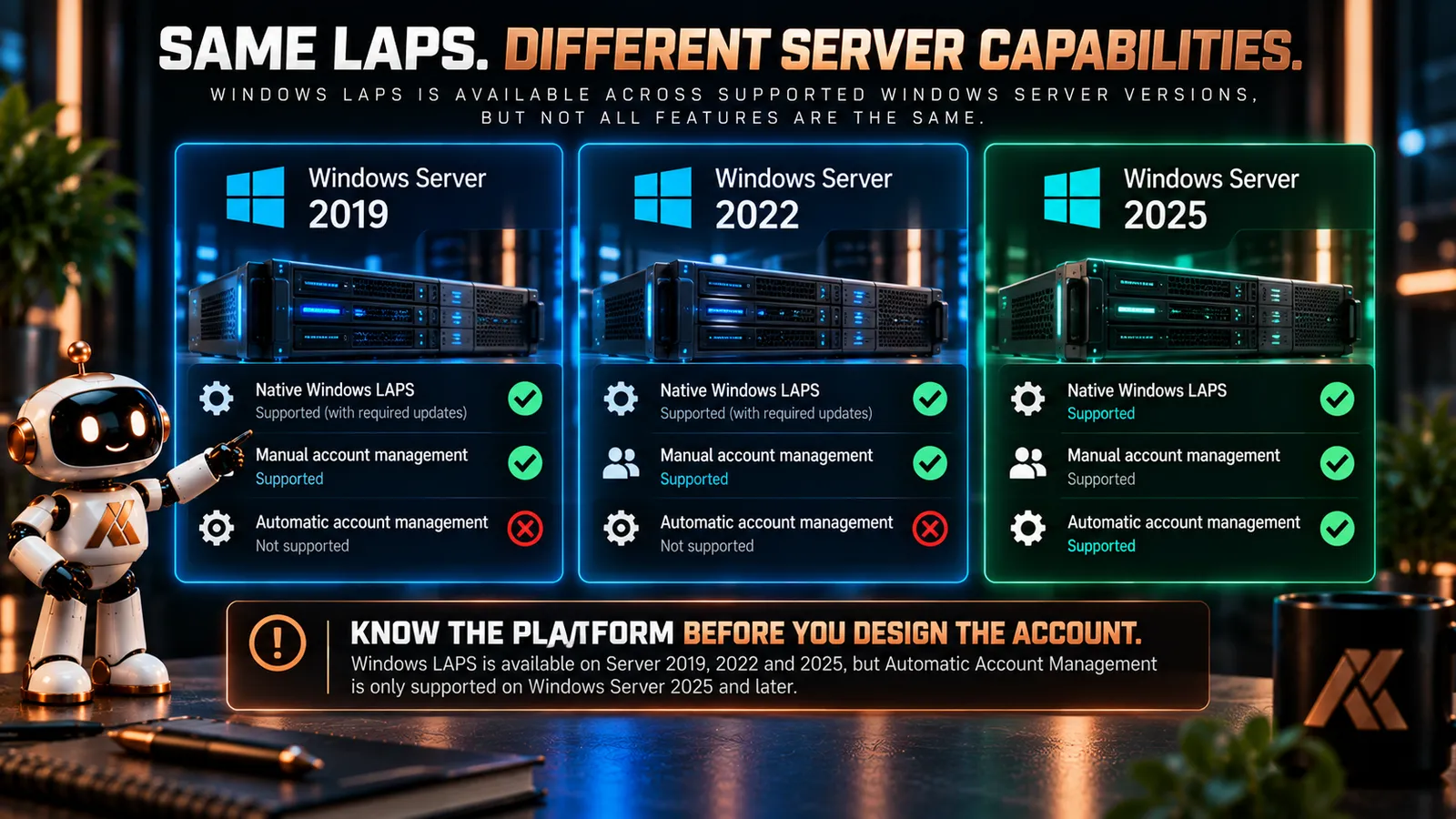
Native Windows LAPS isn’t restricted to Windows Server 2025.
Windows LAPS is available on:
- Windows Server 2019 with the required updates
- Windows Server 2022 with the required updates
- Windows Server 2025 and later
So if you’re running a supported, appropriately updated Windows Server estate, Windows LAPS isn’t something you need to wait for Server 2025 to use.
But there is an important distinction.
Automatic Account Management requires:
Windows Server 2025 or later.
That means the experience isn’t identical across every supported server operating system.
On Server 2019 and Server 2022, we’re generally working with the manual account-management model.
On Server 2025, we gain the same newer Automatic Account Management capability we discussed for Windows 11 24H2.
That distinction should influence the server design.
Member servers still have a local administrator problem
Let’s start with ordinary member servers.
A member server still has local accounts.
It still has a local Administrators group.
And exactly the same fundamental problem exists as it does on a workstation:
We don’t want a shared local administrator password across multiple machines.
If the same local administrative credential exists across an estate, compromise of that credential can create an obvious lateral-movement opportunity.
Windows LAPS solves that password problem very effectively.
Each server can have its own managed local administrator credential.
The password can be complex.
It can be rotated automatically.
It can be stored centrally.
And retrieval can be delegated.
So far, this sounds almost identical to Windows 11.
But this is where I think we need to stop and ask:
What is this local account actually for on a server?
The LAPS account shouldn’t become the normal server admin account
On a managed server estate, normal administration should generally be identity-based.
An administrator signs in using an appropriate administrative identity.
Access is granted through groups and role design.
Privileged access is governed.
The identity is attributable to a person or controlled process.
That gives us accountability.
A Windows LAPS credential is different.
It’s a local credential associated with the machine.
That makes it extremely useful for:
- recovery
- troubleshooting
- scenarios where domain authentication isn’t available
- emergency or break-glass access
- specific support scenarios where local authentication is required
But I wouldn’t design it as:
This is the password the server team uses whenever they need to administer the box.
If several administrators routinely retrieve and use the LAPS password, we’ve lost much of the individual accountability provided by named administrative identities.
Yes, we can audit retrieval.
Yes, the password is unique.
Yes, it rotates.
But that doesn’t make a shared recovery credential the ideal day-to-day administration model.
LAPS should give us a controlled local recovery path, not become our primary server administration identity.
Where should the password live?
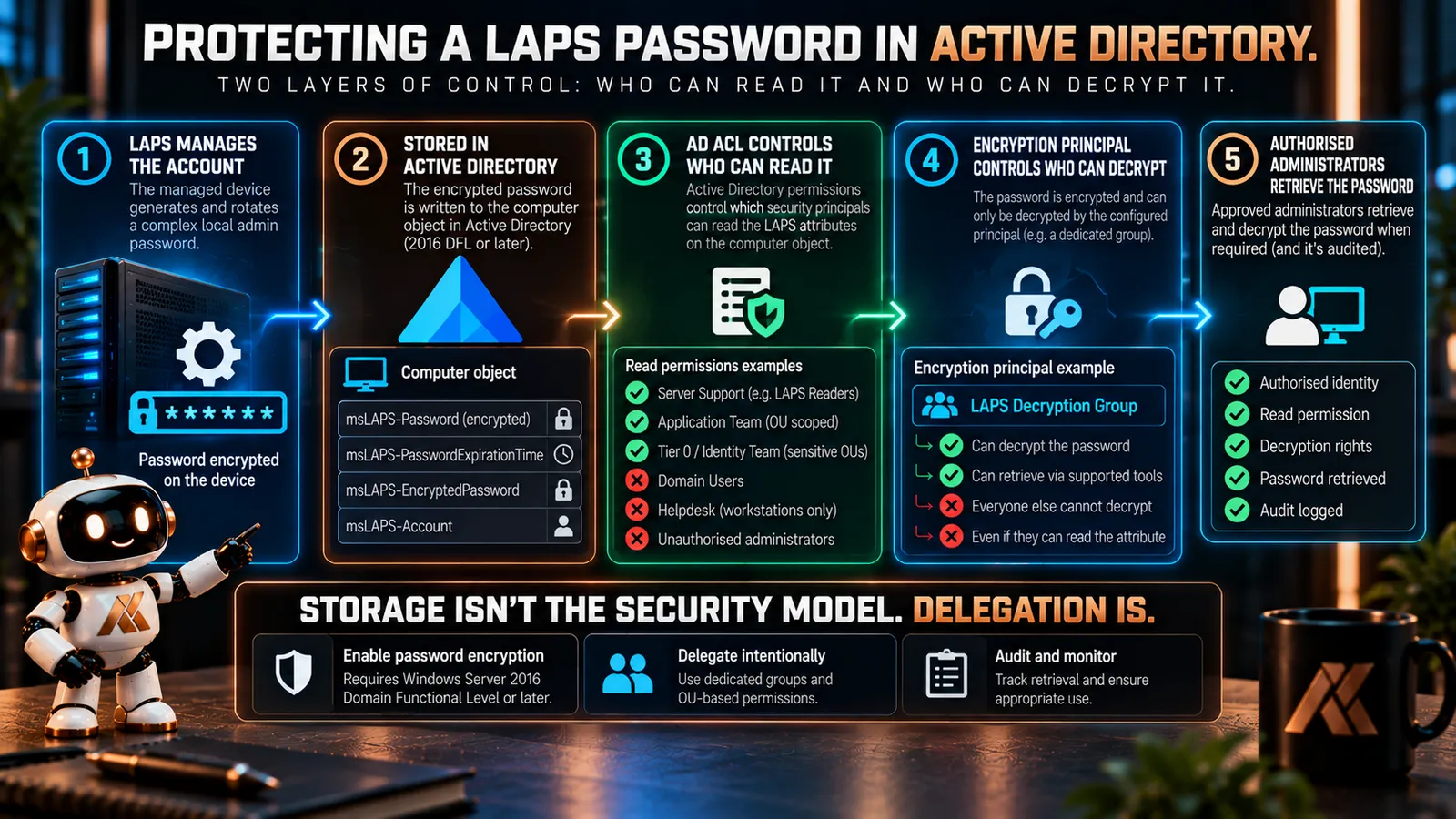
For Active Directory-joined servers, Windows LAPS can store the local administrator password in Windows Server Active Directory.
For hybrid-joined devices, Microsoft also supports Microsoft Entra ID as a backup destination.
As we covered in Part 2, the right answer depends on the architecture.
For many traditional server environments, Active Directory remains the natural credential store.
And Windows LAPS has capabilities specifically designed for that model.
The password is stored against the computer object in Active Directory.
But simply saying:
The password is in AD
doesn’t tell us enough about how it is protected.
Encrypt the password in Active Directory
Windows LAPS can encrypt passwords before they’re persisted in Active Directory.
And this is something I would absolutely want in a modern Windows LAPS design.
There is a prerequisite:
The Active Directory domain must be running at Windows Server 2016 Domain Functional Level or later.
Without that, Windows LAPS password encryption can’t be enabled.
In an older domain functional level, passwords can still be stored in Active Directory, protected by ACLs, but not using the Windows LAPS AD password-encryption capability.
For a modern deployment, that should immediately prompt a design question.
If we’re about to roll Windows LAPS across a server estate, what is the domain functional level?
Because if the answer prevents us from using encrypted password storage, I would want to understand why before simply accepting the weaker design.
Microsoft strongly recommends enabling password encryption when Windows LAPS credentials are stored in Active Directory.
So do I.
ACLs and encryption solve different problems
This is worth understanding because they aren’t interchangeable.
Active Directory permissions determine who can read the relevant LAPS attributes.
Password encryption adds another layer.
When encryption is enabled, Windows LAPS encrypts the password on the managed machine before it is written to Active Directory.
We can then define which security principal is authorised to decrypt it.
That gives us two related controls:
Directory permissions
Who can access the LAPS password data?
and:
Encryption principal
Who can actually decrypt the encrypted credential?
By default, if we don’t specify an ADPasswordEncryptionPrincipal, the Domain Admins group for the device’s domain is used.
But that doesn’t mean Domain Admins should automatically become our operational LAPS retrieval group.
We can specify another group.
And for a properly delegated server environment, I think that’s where the architecture gets much more interesting.
Don’t create one enormous LAPS readers group
This is where I think server architecture should often differ from a simple endpoint deployment.
Imagine an organisation has:
- ordinary member servers
- application servers
- SQL servers
- infrastructure servers
- certificate services
- identity infrastructure
- executive or highly sensitive workloads
Should every administrator capable of retrieving one LAPS password necessarily be able to retrieve all of them?
Probably not.
Active Directory gives us the ability to delegate password retrieval around the OU structure.
That means we can align LAPS retrieval with administrative boundaries.
For example:
Server Support
Can retrieve credentials for ordinary member servers.
Application Platform Team
Can retrieve credentials for their server population where justified.
Identity or Tier 0 administrators
Control access to the most sensitive infrastructure.
The exact model will vary.
But the important point is:
LAPS delegation should follow the privilege boundary of the systems being protected.
A helpdesk role that can retrieve a workstation LAPS password shouldn’t automatically gain the ability to retrieve a server LAPS password.
And somebody supporting an ordinary application server shouldn’t necessarily have a recovery credential for identity infrastructure.
Windows LAPS gives us the technical capability.
We still have to design the boundary.
Then we get to domain controllers
Domain controllers change the conversation.
A domain controller doesn’t have a normal local SAM-based Administrator account in the same way as a member server.
So we’re no longer talking about managing an everyday local administrator credential.
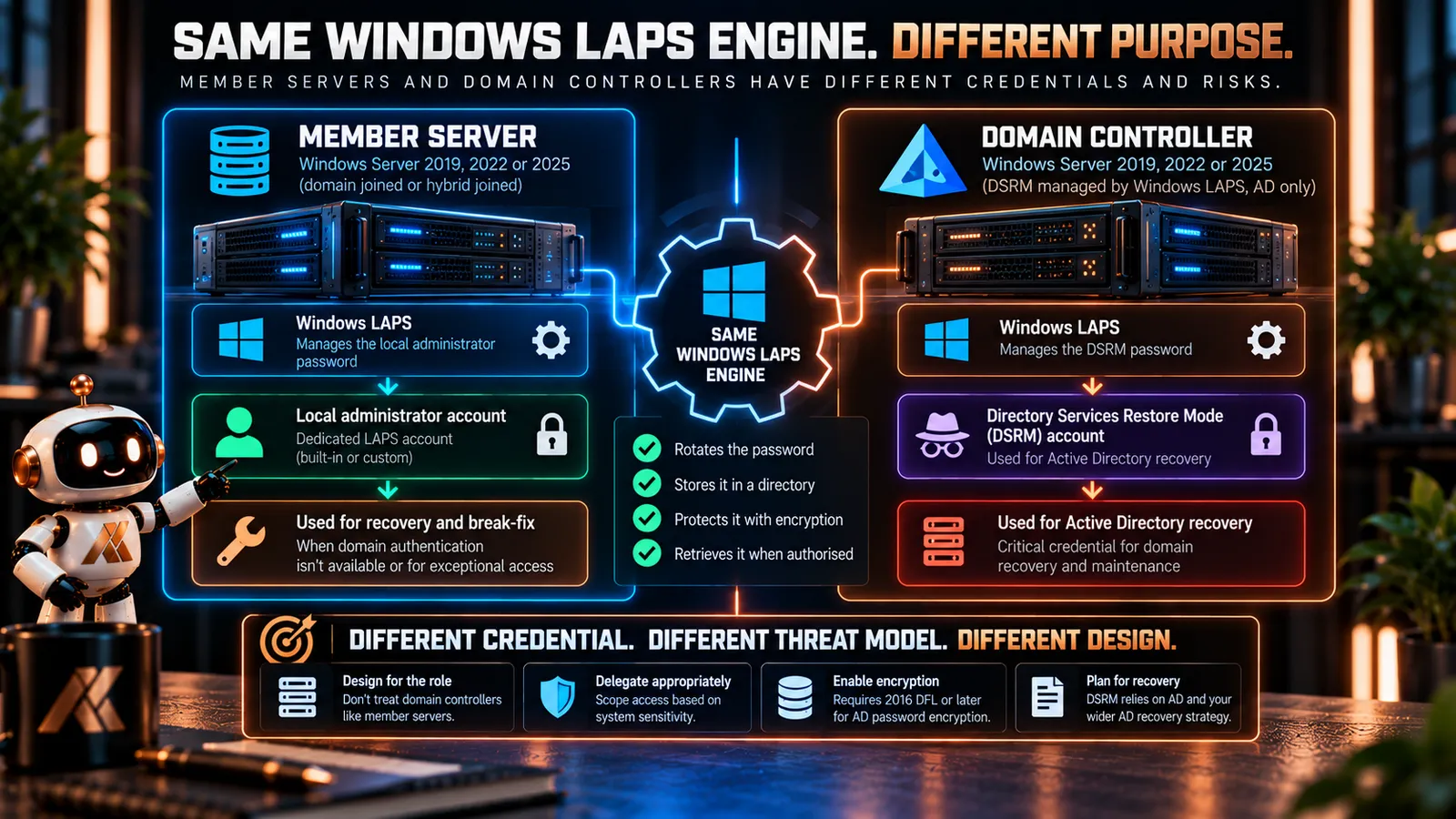
Instead, Windows LAPS can manage the password for the:
Directory Services Restore Mode account
or:
DSRM account.
DSRM exists for recovery and maintenance scenarios involving Active Directory Domain Services.
And historically, the DSRM password has been one of those credentials that organisations configure during domain-controller promotion and then hopefully remember how to retrieve years later when something has gone badly wrong.
Windows LAPS gives us a much better option.
It can rotate and back up the DSRM password for each domain controller.
That is a very different use case from managing a local administrator account on a member server.
DSRM has some important requirements
There are a few things we need to get right before enabling DSRM password backup.
First, DSRM passwords can only be backed up to:
Windows Server Active Directory.
They can’t be backed up to Microsoft Entra ID.
Second, Windows LAPS password encryption must be enabled.
That means the Active Directory domain must be at least Windows Server 2016 Domain Functional Level.
The ADBackupDSRMPassword setting only takes effect when AD password encryption is enabled and its prerequisites are satisfied.
There is another subtle difference.
For an ordinary encrypted Windows LAPS password, we can configure the ADPasswordEncryptionPrincipal.
For DSRM password backup, that setting isn’t used.
The encryption principal for the DSRM password is always the Domain Admins group of the domain controller’s domain.
That makes sense when we consider the sensitivity of the credential.
This is a domain recovery credential.
Treat it accordingly.
DSRM isn’t Automatic Account Management
There is another distinction worth making, particularly now that Server 2025 supports Automatic Account Management.
Automatic Account Management applies to the Windows LAPS-managed local administrator account.
It doesn’t apply to DSRM.
Microsoft explicitly treats DSRM password management separately from the manual and automatic account-management modes.
So don’t think of Server 2025 as:
Automatic Account Management also creates or manages my DSRM account.
It doesn’t.
The DSRM account already exists as part of the domain-controller architecture.
Windows LAPS manages its password.
Different credential.
Different lifecycle.
Different purpose.
DSRM also changes the recovery conversation
There is a slightly uncomfortable question we need to ask whenever we centralise a recovery credential:
What happens when the system storing the recovery credential is the thing we’re trying to recover?
Microsoft has thought about this.
When DSRM password backup is enabled, the current DSRM password can be retrieved as long as at least one domain controller in the domain remains accessible.
But consider the catastrophic scenario.
Every domain controller is unavailable.
We need DSRM precisely because Active Directory is in serious trouble.
At that point, simply saying:
We’ll retrieve the password from AD.
isn’t particularly useful.
Windows LAPS supports recovery of DSRM password information from Active Directory backups as part of disaster-recovery scenarios.
That means our DSRM design needs to connect to something bigger:
Our Active Directory recovery strategy.
Do we have supported backups?
Are they tested?
Do we know how to recover the required LAPS information?
Who has authority to do it?
Where is the recovery procedure documented?
Windows LAPS improves the DSRM credential lifecycle.
It doesn’t replace Active Directory disaster-recovery planning.
A recovery credential isn’t a recovery strategy.
Server 2025 gives us another option for member servers
Now let’s come back to ordinary member servers.
Windows Server 2025 supports Automatic Account Management.
That means Windows LAPS can take responsibility for creating and configuring its own dedicated local administrator account rather than requiring us to provision the account separately.
Just as with Windows 11 24H2, Microsoft recommends preferring Automatic Account Management unless there is a specific requirement for more detailed manual configuration.
Microsoft also recommends creating a custom managed account and leaving the built-in Administrator unused and disabled.
For a new Server 2025 deployment, I think that’s a very sensible starting position.
Instead of:
Built-in Administrator enabled and managed by LAPS
we can move towards:
Built-in Administrator disabled
Dedicated Windows LAPS recovery account created and controlled automatically
That makes the intent of the account much clearer.
It exists because Windows LAPS owns it.
It exists for the recovery and support scenarios we’ve designed.
And Windows LAPS protects the account configuration from external tampering.
But don’t forget Server 2019 and 2022
This is where mixed server estates need care.
Suppose we have:
Server 2019
Server 2022
Server 2025
We can’t blindly deploy the exact same account-management settings to all three and assume identical behaviour.
Automatic Account Management isn’t supported on Server 2019 or Server 2022.
Those platforms still require the manual account-management model.
If we’re using a custom managed account, something else needs to create and configure that account before Windows LAPS can manage its password.
That means a mixed estate may need different policy targeting.
Or it may influence the decision to continue using a common manual account-management model until the older platforms have been retired.
There isn’t necessarily one universally correct answer.
But there should be a deliberate answer.
Design for the platforms you actually operate, not just the newest one in the architecture diagram.
What would my server design look like?
For ordinary Active Directory-joined member servers, my starting point would be:
Native Windows LAPS
Use the built-in Windows capability rather than legacy Microsoft LAPS.
Active Directory backup
Where AD is the appropriate credential store for the server-management model.
Password encryption
Enable it.
Dedicated decryption principal
Delegate deliberately rather than simply accepting broad administrative access.
OU-aligned retrieval permissions
Scope retrieval according to server sensitivity and administrative responsibility.
LAPS credential
Treat it as recovery or exceptional access, not the normal server-administration identity.
Server 2025
Prefer Automatic Account Management with a dedicated custom account where appropriate.
Server 2019/2022
Use the manual account-management model and ensure the intended account exists.
For domain controllers:
Manage the DSRM password
Back it up using Windows LAPS.
Enable AD password encryption
It’s required for DSRM backup anyway.
Protect retrieval
Treat DSRM as a highly privileged recovery credential.
Integrate it with AD recovery
Make sure the process still works when the directory itself is unavailable.
That’s a server LAPS architecture.
Not simply:
We enabled the GPO.
The technology is the easy part
Windows LAPS itself is refreshingly straightforward.
Rotate a password.
Protect it.
Store it.
Retrieve it when authorised.
The difficult part is deciding what that credential represents.
On a workstation, it may be a support or recovery account.
On a member server, it may be an exceptional local administration path.
On a domain controller, it becomes a DSRM recovery credential.
Those aren’t interchangeable scenarios.
And the more sensitive the system becomes, the more important delegation, encryption, auditing and recovery become.
So when somebody asks:
Do we have LAPS on our servers?
I think the better questions are:
Which credential are we managing?
Where is it stored?
Is it encrypted?
Who can retrieve and decrypt it?
Why would they use it?
And what happens when Active Directory itself is unavailable?
Because:
Same technology. Different threat model. Different design.
In Part 4, we’ll bring the series together by looking at what happens after deployment.
Because getting Windows LAPS configured is only the beginning.
We’ll look at credential retrieval, delegation, auditing, password rotation after use, monitoring, recovery and how we identify the local administrator accounts that LAPS isn’t managing.
Deployment isn’t the finish line.
Microsoft Learn references
Documentation checked on 4 October 2026. Microsoft’s documentation below describes Windows LAPS platform support, Active Directory password storage and encryption, account-management modes, delegation and DSRM password management. The server-tiering, operational-use and architectural recommendations in this article are my own design guidance.
Comments
No comments yet — be the first to leave one below.
Published — it will appear for everyone in a couple of minutes once the site updates.