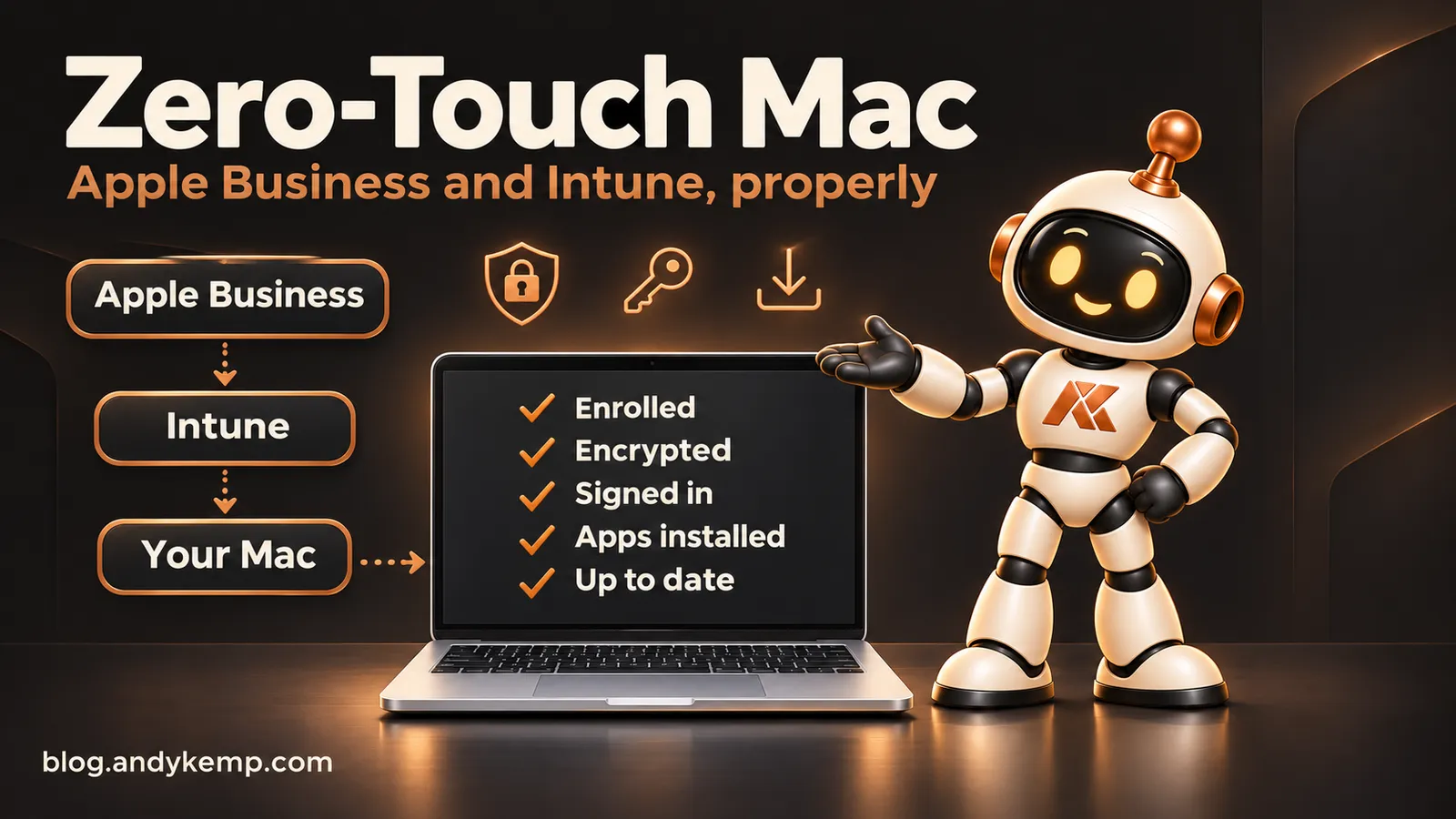
Zero-touch on a Mac depends on one thing: the Mac’s serial number being in Apple Business and assigned to your MDM before the Mac goes through setup.
I missed the first chance to do that, fixed it with an iPhone, then moved too fast and had to erase the Mac. Here’s what happened, and the checklist I’ll use next time.
This is Part 2 of Zero-Touch Mac, a series about building a managed Mac from Apple Business and Intune with every policy, profile and app scripted through Microsoft Graph.
Missing the purchase window
Macs bought through Apple Business, or through a reseller linked to your Apple Business account, appear in it automatically. Mine had already shipped by the time I realised I hadn’t set that up.
I had two options:
- Ask the reseller or Apple to add it, which can take days.
- Add it myself with Apple Configurator for iPhone.
I went with the iPhone, because the Mac hadn’t been switched on yet.
Adding the Mac with Apple Configurator for iPhone
Apple Configurator on an iPhone can add a Mac to Apple Business while the Mac is in Setup Assistant. You need:
- A Managed Apple Account in Apple Business with the Device Enrollment Manager role. I kept this separate from my personal Apple Account.
- The Mac powered on and stopped at the Select Your Country or Region screen. Don’t go past it.
Open Configurator on the iPhone, sign in with the managed account, and scan the pairing image on the Mac. A few minutes later the Mac’s serial number appeared in Apple Business.
This also works for a Mac you’ve already set up, but only after Erase All Content and Settings. There’s no way to add a Mac to Apple Business without taking it back to Setup Assistant.
The holding group
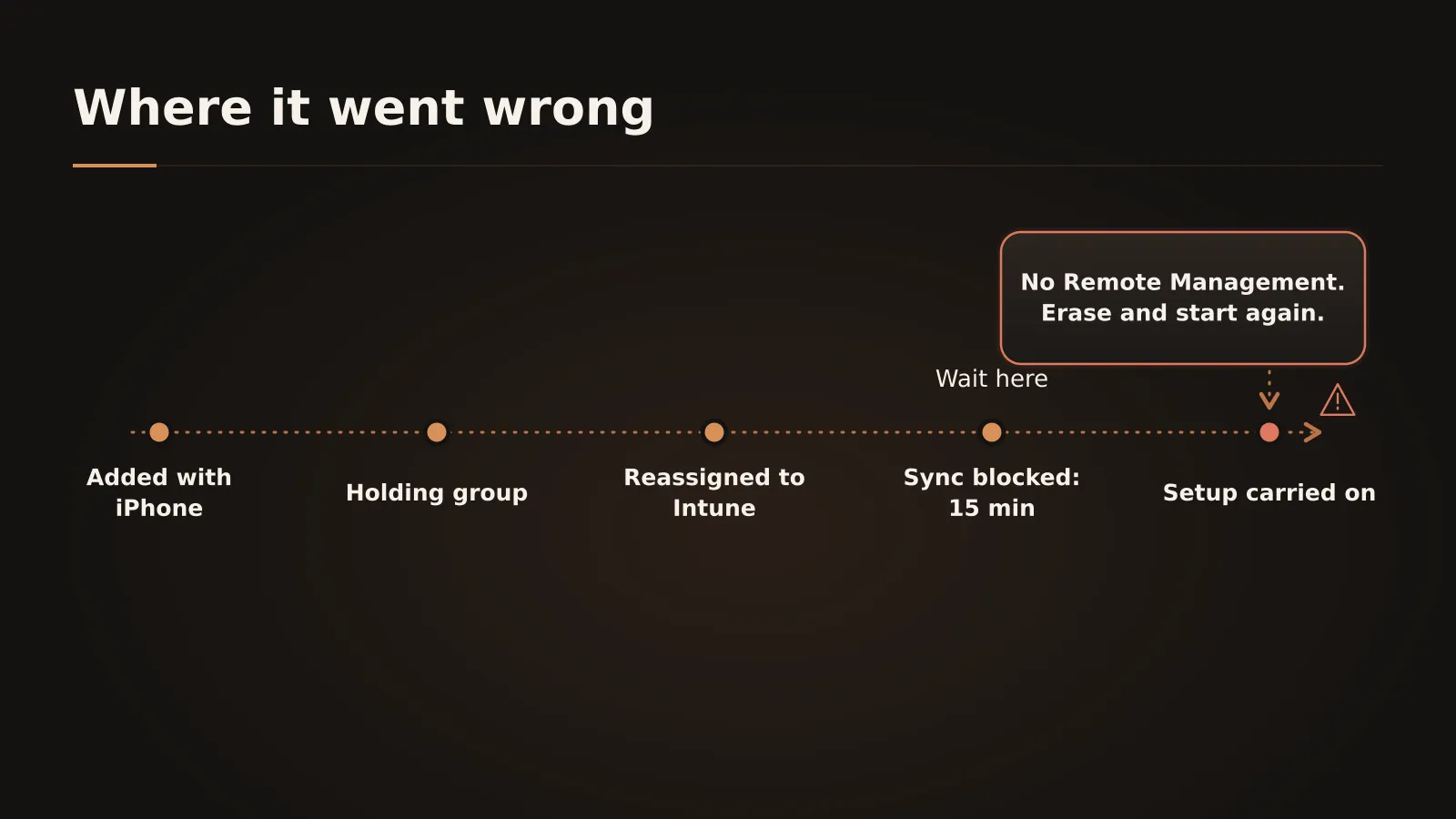
The Mac didn’t appear against Intune. It was assigned to Devices Added by Apple Configurator 2, because Apple Business only sends a Configurator-added Mac to your MDM automatically if you’ve set that MDM server as the default for Macs. I hadn’t.
I reassigned it to my Intune server in Apple Business, then went to Intune to sync the enrolment program token. Intune refused: you can only sync a token once every 15 minutes, and I’d synced it shortly before.
Where it went wrong
I didn’t wait. I carried on through Setup Assistant: Wi-Fi, the data and privacy screens, then straight to creating a local account. There was no Remote Management screen.
The Mac had checked Apple’s servers before Intune had its assignment, decided it wasn’t managed, and set itself up as a personal Mac.
Once a Mac has finished setup, it won’t ask again. The only way back to Remote Management is to erase it and start over.
The recovery
- Restarted into Recovery and chose to erase and reinstall. It failed with “could not recover, please restart”.
- Went back into Recovery, opened Disk Utility and erased the internal disk myself.
- Restarted into Recovery again and reinstalled macOS.
- By now the Intune sync had run. On first boot the Mac showed Remote Management, enrolled in Intune, and carried on with my account details already filled in.
From there, everything from Part 1 applied itself.
The checklist I’ll use next time
- In Apple Business, set Intune as the default MDM server for Mac, so Configurator-added Macs go straight to Intune.
- Power on the Mac and stop at Select Your Country or Region.
- Add it with Apple Configurator for iPhone, signed in with the Device Enrollment Manager account.
- Check Apple Business shows it assigned to the Intune server.
- In Intune, sync the enrolment program token once, then wait at least 15 minutes before trying again.
- In Intune’s enrolment devices list, confirm the serial number is there with its policy Assigned.
- Only then continue Setup Assistant, and check you see Remote Management.
- Missed it? Erase and reinstall. Don’t enrol it through Company Portal instead, or you lose the settings that only automated enrolment gives you.
The Mac doesn’t care how long it sits at Select Your Country or Region. Leave it there until Intune is ready.
Next in the series: Platform SSO, and why my Entra password didn’t work at the login window.

Comments
No comments yet — be the first to leave one below.